
Permissions
Pantry scopes everything to a house. Every list, item, photo, and note belongs to a house, and what a member may do inside that house is decided by the roles they hold. This page explains the model, how to change it, and exactly which capability each action requires.
Concepts
Section titled “Concepts”- House — the top-level container. A user must be a member of a house to touch anything in it.
- Role — a named bundle of capabilities that lives in a house. There are three kinds:
- Admin (
admin) — a built-in role that grants everything, always. Its capabilities are locked on and cannot be edited. Admins also bypass per-list access and sharing restrictions. - Member (
default) — the built-in role assigned to ordinary members. It is fully editable. - Custom (
normal) — any additional role an admin creates, with whatever capabilities they pick.
- Admin (
- Capability — a single boolean permission, e.g.
canAddItems. See the catalog below. - Effective permissions — a member may hold more than one role; their effective capabilities are the union (OR) across all their roles. Holding any admin role grants all capabilities.
When a house is created, it is seeded with an Admin and a Member role, and both start with every capability granted. So out of the box every member can do everything; admins tighten this by editing the Member role or introducing custom roles.
Capability catalog
Section titled “Capability catalog”| Capability | Governs |
|---|---|
canViewLists |
Viewing checklists and their items (incl. trash & archive views) |
canCreateLists |
Creating new checklists |
canEditLists |
Editing list settings and editing/reordering/archiving items, categories, stores, item images |
canDeleteLists |
Trashing, restoring, and permanently deleting checklists |
canAddItems |
Adding items to a list |
canCheckItems |
Toggling an item done/undone |
canCopyItems |
Copying items to another list |
canMoveItems |
Moving items to another list |
canDeleteItems |
Trashing, restoring, and permanently deleting items |
canEditFields |
Creating, editing, reordering, and deleting custom-field definitions |
canViewPhotos |
Viewing photos and folders (incl. trash view) |
canUploadPhotos |
Uploading photos |
canUpdatePhotos |
Editing a photo (caption) |
canMovePhotos |
Managing folders (create/rename/reorder/delete) and moving/reordering photos |
canDeletePhotos |
Trashing, restoring, and permanently deleting photos |
canViewNotes |
Viewing notes (incl. trash view) |
canCreateNotes |
Creating notes |
canUpdateNotes |
Editing notes (title/content/color/pin) and reordering |
canDeleteNotes |
Trashing, restoring, and permanently deleting notes |
How enforcement works
Section titled “How enforcement works”Every write endpoint declares the capabilities it needs. A request is checked in this order:
- Authenticated — must be a logged-in user.
- House member — must belong to the
{houseId}in the route. - Admin short-circuit — if the user holds an admin role, all remaining checks are skipped.
- Required capabilities — the user’s effective capabilities must include every capability the action requires.
- Per-list access — when the route targets a specific list, list access is additionally enforced (see below).
Per-list access and sharing
Section titled “Per-list access and sharing”A checklist can be restricted to specific roles. If a list has no role restriction it is open to every member; otherwise only members holding one of the allowed roles (or an admin) can reach it.
Independently, an individual entity (checklist, note, photo, or photo folder) can be shared with specific users at view or edit level. A share can grant access to someone who would otherwise have none, but it is bounded:
- A view share allows read-only actions only.
- An edit share allows editing items but not, e.g., deleting the whole list.
- Sharing never grants deleting the list/entity itself.
How to change permissions
Section titled “How to change permissions”Roles are edited in the Roles dialog, opened from Manage roles on the Manage house page. It is admin-only. Each role is a card showing its name and a type chip — Built-in admin, Built-in member, or Custom.
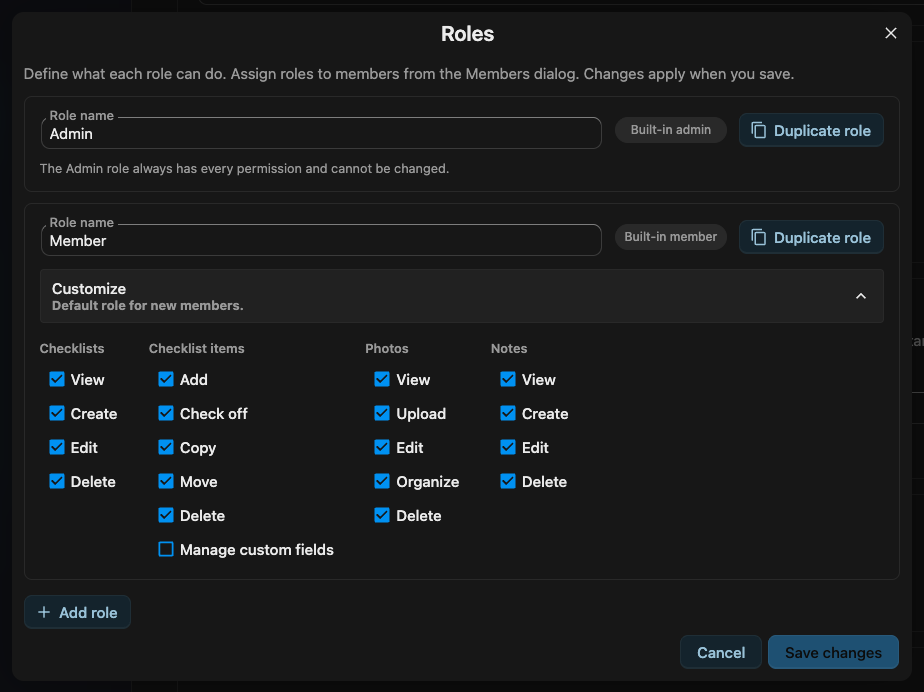
- Edit what a role can do — expand Customize on the Member role or a custom role to reveal its capability switches, grouped into Checklists, Checklist items, Photos and Notes. Each group’s View switch gates the rest of the group: turn View off and the other switches in that group turn off and grey out. The Admin role is locked to every permission and has no switches.
- Add a role — Add role creates a custom role with every permission granted, ready to rename and pare back. Duplicate role copies an existing role’s permissions into a new custom one.
- Delete a role — only custom roles can be deleted; the built-in Admin and Member roles cannot. A pending delete is marked and can be undone until you save.
- Save — nothing takes effect until you select Save changes. Closing with unsaved edits asks you to confirm first.
Roles are assigned to people separately, in the Members dialog (Manage members on the same page) — each member holds one or more roles, and their effective permissions are the union across them.
To scope a single list rather than a whole role, restrict that list to roles, or share an individual entity with specific people — both described under Per-list access and sharing above.
Action → capability matrices
Section titled “Action → capability matrices”Each row is an action; each column is a capability. ✅ marks the capability that action requires. Admins can perform every action regardless of these matrices. “Trash” means soft-delete (recoverable); “permanent delete” erases the row.
Checklists
Section titled “Checklists”Columns: View = canViewLists, Create = canCreateLists, Edit = canEditLists,
Delete = canDeleteLists.
| Action | View | Create | Edit | Delete |
|---|---|---|---|---|
| View lists / open a list | ✅ | |||
| View the lists trash | ✅ | |||
| Create a list | ✅ | |||
| Edit a list (name, description, icon, color, “delete on done” default) | ✅ | |||
| Reorder lists | ✅ | |||
| Trash a list | ✅ | |||
| Restore a list from trash | ✅ | |||
| Permanently delete a list | ✅ | |||
| Empty the lists trash | ✅ |
Checklist items
Section titled “Checklist items”Columns: View = canViewLists, Add = canAddItems, Check = canCheckItems, Edit =
canEditLists, Copy = canCopyItems, Move = canMoveItems, Delete = canDeleteItems.
| Action | View | Add | Check | Edit | Copy | Move | Delete |
|---|---|---|---|---|---|---|---|
| View items | ✅ | ||||||
| View the items trash | ✅ | ||||||
| View the items archive | ✅ | ||||||
| Add an item | ✅ | ||||||
| Toggle an item done / undone | ✅ | ||||||
| Edit an item | ✅ | ||||||
| Reorder items | ✅ | ||||||
| Set / clear an item’s category | ✅ | ||||||
| Set / clear an item’s stores (incl. in bulk) | ✅ | ||||||
| Upload / clear an item image | ✅ | ||||||
| Archive an item | ✅ | ||||||
| Unarchive an item | ✅ | ||||||
| Copy items to another list | ✅ | ||||||
| Move items to another list | ✅ | ||||||
| Trash an item | ✅ | ||||||
| Restore an item from trash | ✅ | ||||||
| Permanently delete an item (incl. from the archive) | ✅ | ||||||
| Empty the items trash | ✅ |
Custom fields
Section titled “Custom fields”Columns: View = canViewLists, Manage = canEditFields.
| Action | View | Manage |
|---|---|---|
| List a house’s custom-field definitions | ✅ | |
| Create a field definition | ✅ | |
| Edit a field definition (name, list scope) | ✅ | |
| Reorder field definitions | ✅ | |
| Delete a field definition | ✅ | |
Delete a select option (remapping or clearing its values) |
✅ |
Photos
Section titled “Photos”Columns: View = canViewPhotos, Upload = canUploadPhotos, Update = canUpdatePhotos,
Move = canMovePhotos, Delete = canDeletePhotos.
| Action | View | Upload | Update | Move | Delete |
|---|---|---|---|---|---|
| View photos and folders | ✅ | ||||
| View the photos trash | ✅ | ||||
| Upload a photo | ✅ | ||||
| Edit a photo caption | ✅ | ||||
| Move a photo to another folder | ✅ | ||||
| Reorder photos | ✅ | ||||
| Create a folder | ✅ | ||||
| Rename a folder | ✅ | ||||
| Reorder folders | ✅ | ||||
| Delete a folder | ✅ | ||||
| Trash a photo | ✅ | ||||
| Restore a photo from trash | ✅ | ||||
| Permanently delete a photo | ✅ | ||||
| Empty the photos trash | ✅ |
Columns: View = canViewNotes, Create = canCreateNotes, Update = canUpdateNotes,
Delete = canDeleteNotes.
| Action | View | Create | Update | Delete |
|---|---|---|---|---|
| View notes | ✅ | |||
| View the notes trash | ✅ | |||
| Create a note | ✅ | |||
| Edit a note (title, content, color) | ✅ | |||
| Pin / unpin a note | ✅ | |||
| Reorder notes | ✅ | |||
| Trash a note | ✅ | |||
| Restore a note from trash | ✅ | |||
| Permanently delete a note | ✅ | |||
| Empty the notes trash | ✅ |