
Example workflows
Pantry doesn’t force one way of working — lists, items and Shopping Mode can be mixed however suits your house. The workflows below are common starting points. Each one answers the same question: what happens to the list once you’re done with it?
The weekly grocery list
Section titled “The weekly grocery list”One list you keep, not a new list every trip. Lists are meant to be reused: items carry their stores, price, category, labels and custom fields, and all of that would be lost if you started from scratch each week.
-
Create one “Groceries” list and add items to it whenever you notice you need something.
-
Pick a recurrence for each item.
- Milk you buy every week? Make it Recurring, repeating weekly on your shopping day.
- Something you need once — a birthday cake, a replacement bulb? Make it One-time, so it leaves the list once you check it off.
- Something always on hand that you restock whenever you run out? A Staple stays on the list after being checked, ready to un-check when it’s needed again.
-
Go shopping. Open Start shopping from the list, pick the stores you’ll visit, and check items off as they go into the cart.
-
Finish the trip and enter what you actually paid in the review, if you want to track spending. Past trips stay in your shopping history.
-
Let the list reset itself. Recurring items come back un-checked on their schedule, one-time items are gone, and the list is ready for next week — no duplicating, archiving or renaming needed.
Resetting by hand
Section titled “Resetting by hand”If you’d rather not use schedules, the Done section’s ⋯ menu works on every checked item in the list at once:
- Uncheck all returns them all to the active list, ready for the next trip.
- Archive all puts them away, out of sight but available to bring back later.
- Remove all moves them to the trash.
Errands and pickups
Section titled “Errands and pickups”A list whose items never come back. Package pickups, returns, one-off errands — once done, there’s nothing to keep.
-
Create a list — for example “Mail pickups”.
-
Open its item defaults and set Recurrence to One-time, so every new item leaves the list once it’s checked off.
-
Add each errand with what you need to get it done — a tracking number and pickup point in the description, or in a custom field.
The list empties itself as you go, and only shows what’s still waiting.
Shared household chores
Section titled “Shared household chores”One list, mixed recurrence, the whole house working from it. A general to-do list that anyone in the house can pick up from.
- Recurring for regular chores — water the plants every few days, change the bedsheets every two weeks. Turn on Starts after completion for chores that should come back a set time after they were last done, rather than on fixed dates.
- One-time for things that only need doing once — fix the cabinet hinge, call the plumber.
Everyone sees the list update as items are checked off, so nobody does the same chore twice. See Sharing for who can see and edit a list.
A repeatable project checklist
Section titled “A repeatable project checklist”A template list you copy each time. Some checklists are the same every time but each run needs its own record — a packing list for every trip, the steps for setting up each new project, the checks for each move-out.
-
Build the template once, as a list with every step, organized with categories and labels.
-
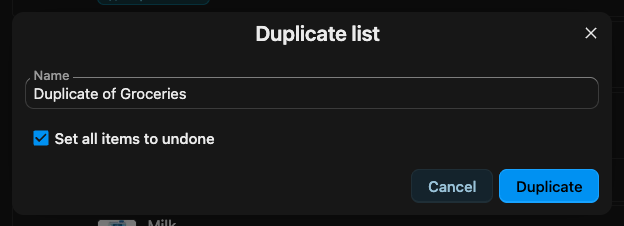
Duplicate it for each run. Choose Duplicate list from the list’s menu, give the copy a name — for example, the trip or project it’s for — and keep Set all items to undone on so the copy starts fresh. The copy brings along every item, category and setting.
-
Work through the copy. The template stays untouched, ready for next time.
-
Archive the copy when the run is over, so it’s out of the way but still there to look back on.