
Sharing
Pantry is built for a household. Everything belongs to a house, and everyone in that house shares its lists, boards and notes. On top of that, you can narrow access to individual items when you need to.
Houses and members
Section titled “Houses and members”A house is the shared space for everyone you live with. Being a member of a house is what lets you see and work on its checklists, Photo Board and Notes Wall. Adding and removing members is done by a house administrator.
Restricting a list to roles
Section titled “Restricting a list to roles”By default every list is open to every member of the house. A list can instead be restricted to specific roles, so only members holding one of those roles (and administrators) can open it — useful for a list only some of the house should see. Restricting a list to roles is an administrator action.
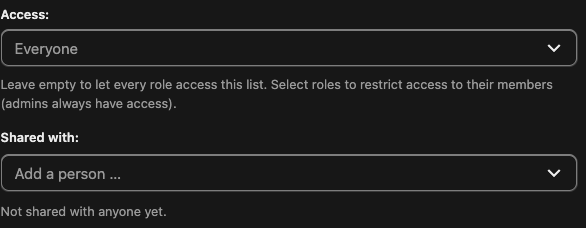
For a checklist, both controls live in its Edit list dialog: Access restricts the list to roles, and Shared with shares it with specific people.
Sharing a single item with people
Section titled “Sharing a single item with people”Independently of house membership, an individual checklist, note, photo or photo folder can be shared with specific people at one of two levels:
- View — read-only access.
- Edit — can change the contents (for example, check off and edit items) but not delete the whole thing.
-
Open the item — for a checklist, open Edit list; for a note or photo, open its actions.
-
Under Shared with, add a person.
-
Choose their access — View or Edit.
-
Open the checklist, note or photo you want to share.
-
Choose Share from its actions.
-
Pick the person and choose View or Edit.
A share can grant access to someone who would otherwise have none, but it is bounded: it never allows deleting the shared item itself, and only the item’s creator or a house administrator can manage its shares.