
Templates
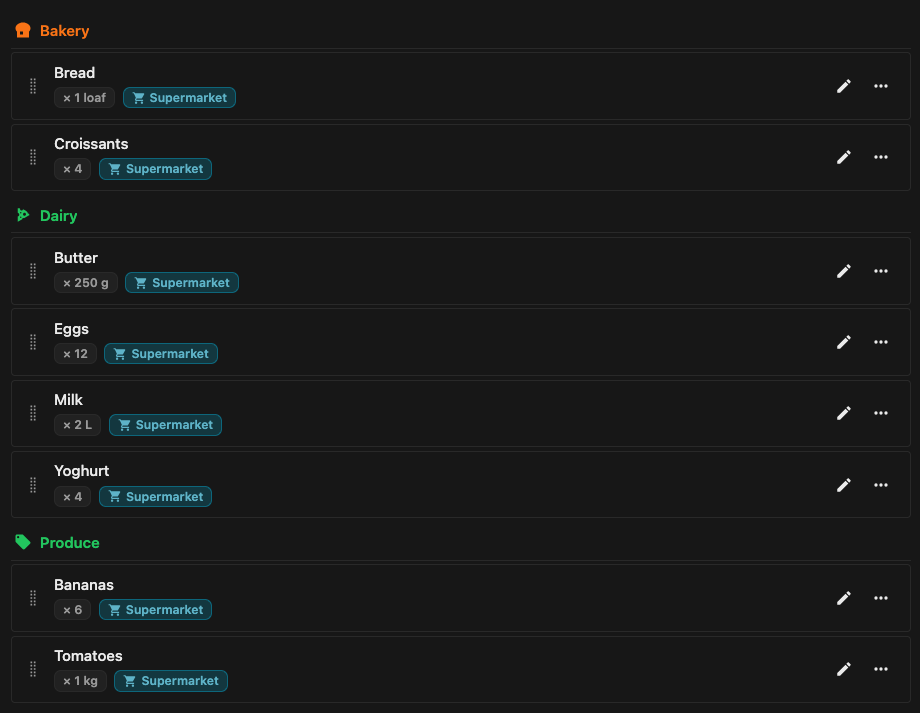
A template holds items you add again and again — your weekly staples, a packing list, everything a guest room needs. A template is never checked off or shopped from. Its items are copied into checklists and inventories whenever you need them: suggested as you type a name, added one at a time, or applied all at once.
Create a template
Section titled “Create a template”-
Open Pantry in Nextcloud and look at Templates in the left sidebar.
-
Select New template.
-
Give it a name, and optionally an icon, color and description.
-
Open the Checklists tab and tap the list name at the top to open the list switcher.
-
Pick Templates at the top of the switcher, then New template.
-
Give it a name, a color and an icon, and tap Create list.
On a wide window, templates also have their own heading in the side rail.
Templates stay on the web and the mobile and desktop app; the watch shows only checklists and inventories.
A template page works like a checklist without checkboxes. Add items with the same composer, and edit, move, copy, archive and trash them the same way. Templates have their own archive and trash.
What a template item holds
Section titled “What a template item holds”A template item carries the same details as a checklist item — quantity, price, category, stores, labels, custom fields, description, image and barcode — except a repeat schedule. It can also say how it is stocked when it lands on an inventory:
- Stock — Count or Level, with a Target and a Reorder point. With no stock mode picked, it uses the inventory’s default. The card spells out how the item starts, for example “Drawn into an inventory, it starts full with 12 on hand.”
- Expiry — None, or Keeps a number of days. A template holds how long an item keeps, never a date: the date is set when the item lands on an inventory.
Attach templates to lists
Section titled “Attach templates to lists”Attaching a template to a list makes its items show up as suggestions while you add items there. Attach from either side:
- From the list — the checklist’s or inventory’s edit dialog has a Templates: field. Pick the templates whose items it suggests.
- From the template — Edit template has a Suggest in: field. Pick the checklists and inventories it suggests items on, or turn on Every list to cover every checklist and inventory in the house, including ones made later.
Both fields are in the list’s edit dialog: Edit checklist, Edit inventory or Edit template.
In the list switcher, open the list’s ⋮ menu and tap Edit checklist, Edit inventory or Edit template. Templates: and Suggest in: need a connection, so they are left out of the form while you are offline.
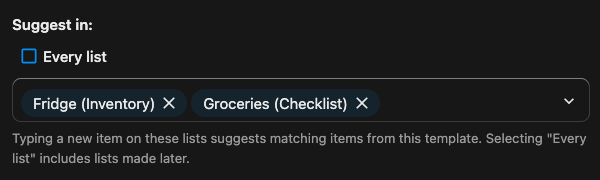
A list can have any number of templates, and a template can suggest on any number of lists. An archived or trashed template keeps its attachments but suggests nothing until it is back in use.
Suggestions as you type
Section titled “Suggestions as you type”While you type an item name on a checklist or inventory, a Suggestions panel shows the closest matches: the list’s own items first, then items from its templates. A template suggestion carries a chip naming the template it comes from.
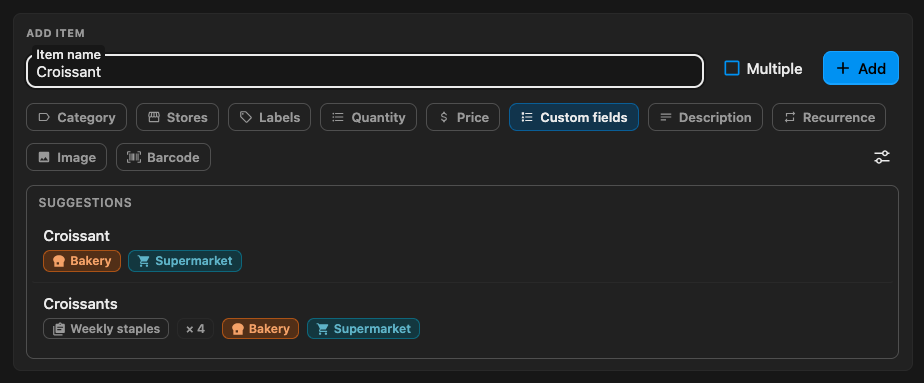
Pick a template suggestion to add it to the list. A template item the list already has by name is never suggested over the list’s own copy. Suggestions stay out of the way while you add several items at once with Multiple, or while a detail tray is open.
The panel opens under the Item name field.
The panel opens just above the add bar at the bottom, or below it when the add bar is set to the top. Template suggestions need a connection: offline, only the list’s own items are suggested.
Adding an item from a template
Section titled “Adding an item from a template”An item added from a template is a copy, so changing the template later leaves it as it is. It starts unchecked, with the template item’s name, description, category, quantity, stores, labels, prices, custom fields, image and barcode. On an inventory it also takes the stock mode, target, reorder point and shelf life, and starts full, keeping its shelf life from today.
Categories, labels and custom fields that belong only to the template are matched by name on the list, and added to it when the list does not have them yet.
Filling in from item defaults
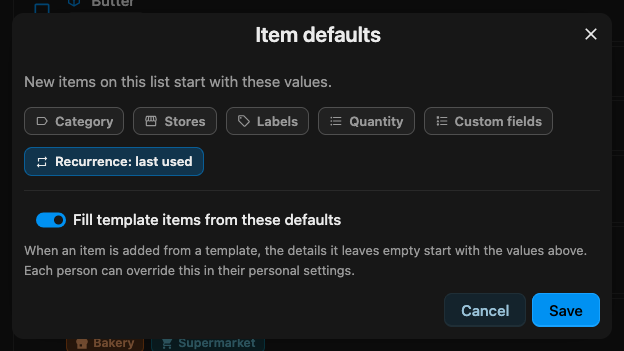
Section titled “Filling in from item defaults”Details the template item leaves empty can start from the list’s item defaults — the list’s usual store, say, or its recurrence. Two switches decide whether they do:
- Per list — Fill template items from these defaults at the bottom of the list’s Item defaults dialog. On by default.
- Per person — Fill template items from item defaults: Follow each list, Always fill or Never fill. Your choice here wins over the list’s switch. On the web it is in Personal settings; in the mobile and desktop app, under Settings → Interface → Adding items.
Apply a whole template
Section titled “Apply a whole template”To bring in many items at once — the whole weekly shop, the full packing list — apply the template.
-
Open the list’s ⋯ menu and select Apply template. On a template, select Apply to list instead.
-
Pick what to apply: a template under Attached to this list or Other templates, or, from a template, the checklist or inventory to apply it to.
-
Untick anything you don’t need this time, then select Apply — the button counts the ticked items.
-
Open the list’s ⋮ menu and tap Apply template. On a template, tap Apply to list instead. Both are also in each list’s menu in the list switcher.
-
Pick a template under Attached to this list or Other templates, or, from a template, a list under Checklists or Inventories.
-
Untick anything you don’t need this time, then tap Apply — the button counts the ticked items. Back returns to the choice.
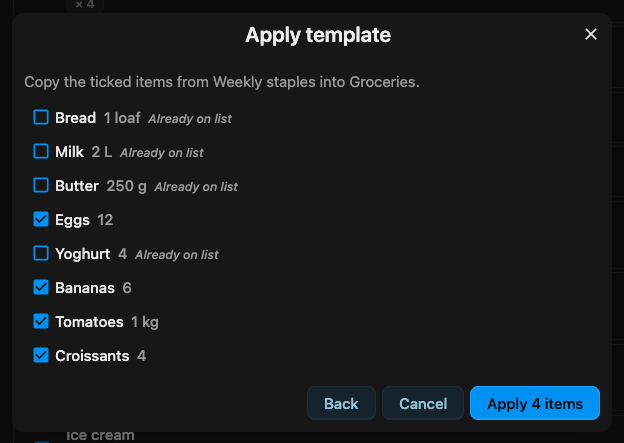
Items the list already has open are marked Already on list and start unticked. Every ticked item is added just as a single one would be, so one the list has checked off or archived is brought back rather than duplicated. The message afterwards says how many were added and how many brought back.
Duplicate as another kind
Section titled “Duplicate as another kind”Duplicate checklist, Duplicate template and Duplicate inventory, in a list’s menu (and, in the mobile and desktop app, Duplicate in each list’s menu in the list switcher), ask what to Duplicate as: — Checklist, Inventory or Template — so one list can become the start of another kind:
- Duplicate a template as a checklist for each trip or project, and work through the copy while the template stays as it is.
- Save a checklist that worked well as a template.
- Start an inventory from a template of everything a cupboard should hold.
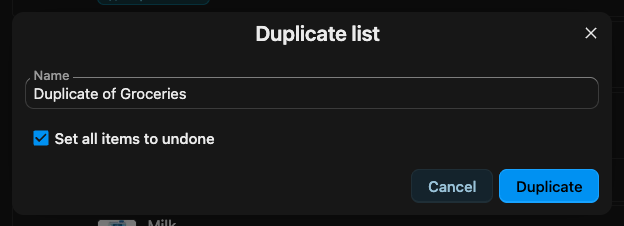
The copy takes the items with their details, the list’s own categories, labels and custom fields, its item defaults, and its icon, color and access. Items arrive unchecked; duplicating a checklist as a checklist can keep them as they are with Set all items to undone turned off. Repeat schedules do not carry into an inventory, and a list’s attached templates carry over only when it stays a checklist or inventory.