
Inventories
An inventory tracks what you have at home — the pantry shelf, the fridge, the cleaning cupboard — and how much of each thing is left. When something runs low or starts to go off, Pantry puts it on your shopping list. When you tick it off there, the inventory is restocked.
Create an inventory
Section titled “Create an inventory”-
Open Pantry in Nextcloud and look at Inventories in the left sidebar.
-
Select New inventory.
-
Give it a name, and optionally an icon, color and description.
-
Open the Checklists tab and tap the list name at the top to open the list switcher.
-
Pick Inventories at the top of the switcher, then New inventory.
-
Give it a name, a color and an icon, and tap Create list.
On a wide window, inventories also have their own heading in the side rail.
Inventories are made on the web or in the mobile and desktop app. The watch lists them under their own heading in the list switcher, after the checklists.
Add items with the same composer as a checklist, with two extra chips: Stock and Expiry. Items are organized, edited, archived and trashed just as on a checklist. Inventories have no checkboxes: you change how much is left instead.
Counting stock
Section titled “Counting stock”Each item is tracked one of two ways, picked under Stock in the item dialog:
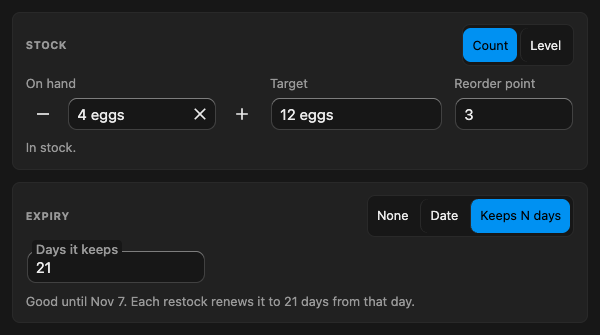
- Count — for things you can count. On hand is how many you have, Target how many you want (“12 eggs”), and Reorder point the amount at which it counts as low. Without a reorder point, anything below the target is low. At 0 it is out.
- Level — for things you’d rather not count, like flour or spices: Full, Low or Out, plus a Restock amount — what you buy when it runs low (“1 kg bag”).
Stock amounts are free text like any quantity, so units come along: “4 eggs”, “2 L”. A new count item starts full, with its target on hand, unless you give it an amount. When on hand has no number (“some”), the item is Not counted: it is shown but never runs low.
Switching an item between Count and Level converts its values, and the dialog shows what it converted them to before you save.
Reading a row
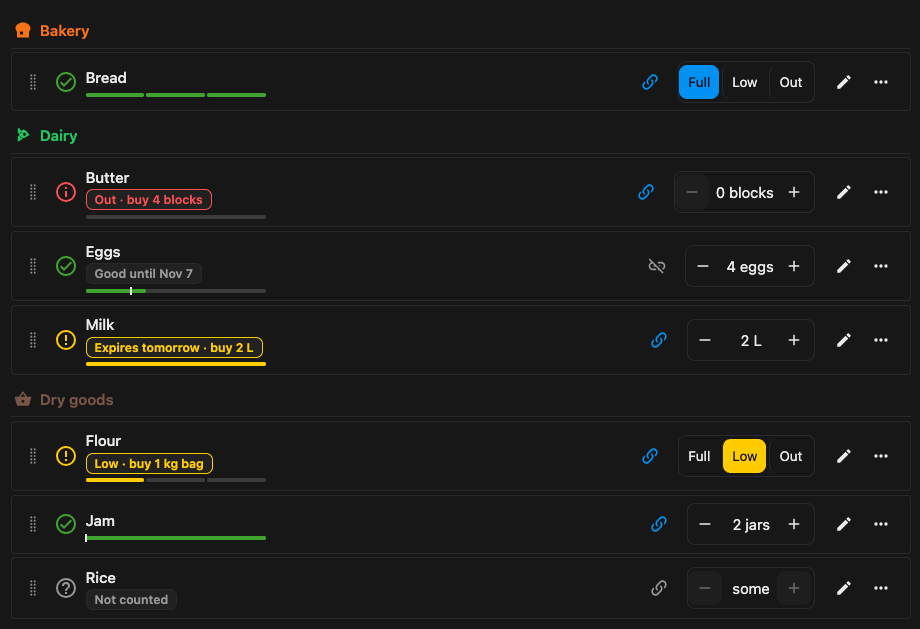
Section titled “Reading a row”- The status icon in front of each item is green when it is in stock, amber when it is low or expiring, red when it is out or expired, and a grey question mark when it is not counted.
- Chips under the name say what needs doing: Low · buy 8 eggs, Out · buy 4 blocks, Expires tomorrow · buy 2 L, Expired Oct 21 · buy 1 carton. The amount is what goes on the shopping list. An item in date shows Good until its date.
- A gauge under the chips fills with what is on hand, with a tick at the reorder point. A level item shows three segments for Full, Low and Out.
- − and + on a count item step the number and keep the words around it (“4 eggs” → “5 eggs”). A level item has a Full / Low / Out control instead.
Items that need restocking stay under their category: a status is only ever a filter.
Changing stock
Section titled “Changing stock”- On a wide screen, a count item has a − 4 eggs + stepper and a level item a Full / Low / Out control at the end of its row.
- On a narrow screen, the amount moves into a 4 / 12 eggs chip and the stepper keeps only − and +. A level item has one button naming its level, which opens Full / Low / Out.
The row picks its layout by how wide the list is, not by the device: a phone held sideways, a tablet in split view or a narrow desktop window each get the layout that fits.
- Wide (more than 600 points across): a − 4 eggs + stepper, or a Full / Low / Out control for a level item.
- Narrow: the amount moves into a 4 / 12 eggs chip and the row keeps only − and +. A level item has one button naming its level, which opens Full / Low / Out.
- Hold − to empty it, hold + to fill it to its target.
- Hold the amount — the stepper’s number, or the 4 / 12 eggs chip — to type how many you have.
- A run of taps is saved once you stop tapping, as a single change; tapping back to where you started saves nothing. Leaving the app saves straight away.
- Tapping and long-pressing a row follow your Default item tap action and Default item long-press action. Since inventory items cannot be checked, Mark as done opens the item instead.
- Swipe a row for View, Edit, Move, Copy, Archive and Remove.
- Each row shows the status icon, the name, and the gauge as a thin line under it. The row in the middle of the screen also shows its amount and its most urgent chip, plus the category, store and label chips your chip settings allow.
- Tap a row to adjust it: − and + for a count item, Full / Low / Out for a level item. Hold − to empty it, hold + to fill it.
- Nothing is saved while the row is open. Tap ✓, or scroll the row away with your finger or the crown, to close it: its change, such as +3 eggs, then waits out the undo window on the row. Tap the row before it runs out to take the change back.
- Stepping back to where you started saves nothing. Leaving the app saves an open row straight away, without the undo window.
- Long-press a row for its details: the amount, every chip, the stock and expiry lines, how it reaches the shopping list, and Open on phone.
Everything else — the item’s stock and expiry fields, links, inventory settings and adding items — is done on the phone or the web.
Finding what needs restocking
Section titled “Finding what needs restocking”- In the sidebar, each inventory shows how many of its items need restocking.
- The Stock filter above the list shows All items, only those that Need restock (low, out, expiring or expired), or those In stock.
The count sits beside each inventory in the left sidebar, and Stock is one of the filter dropdowns above the list.
The count is a badge beside each inventory in the list switcher, and in the side rail on a wide window. Stock sits in the filter row under the list header, next to Categories, Stores and Labels.
The count shows beside each inventory in the list switcher. An inventory opens on all its items; the Needs restock chip at the top of the list narrows it to those that need restocking.
Expiry dates
Section titled “Expiry dates”Under Expiry in the item dialog, choose how an item expires:
- None — it does not expire.
- Date — the date it is good through. A date after today also sets how long it keeps.
- Keeps N days — how long it keeps once stocked. The date becomes today plus that many days, and every restock renews it.
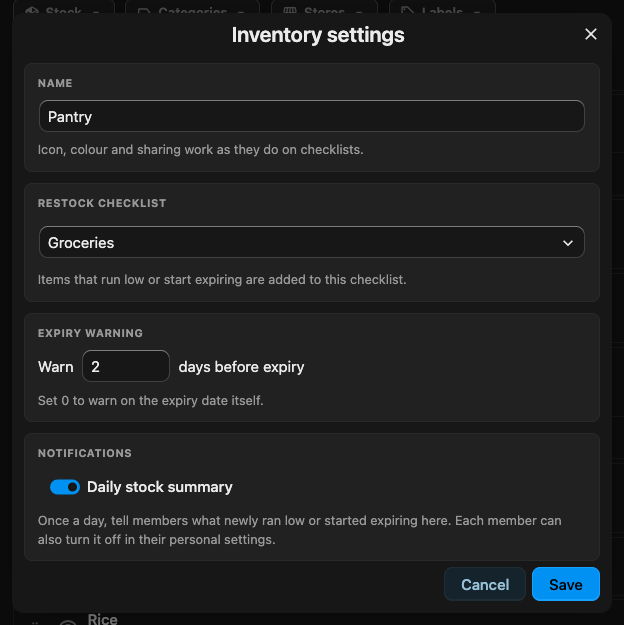
An item is expiring from a few days before its date, and expired from the day after. Expiry warning, in the inventory’s settings, sets how many days ahead to warn — 2 by default, or 0 to warn on the date itself. An item that keeps only a short time is not flagged straight after it is restocked. An item with nothing left on hand is never flagged as expiring: there is nothing to go off.
Expiry never changes your stock: throwing food away is your call. An expiring item asks the shopping list for a full replacement — its target, or its restock amount.
From the inventory to the shopping list
Section titled “From the inventory to the shopping list”The restock checklist
Section titled “The restock checklist”Pick a Restock checklist in Inventory settings. Items that run low or start expiring are added to it, or put back on it when they are already there. Without one, they are only marked on the inventory, and the inventory says so above the list.
Inventory settings is in the inventory’s toolbar actions.
Open the inventory’s ⋮ menu and tap Inventory settings under Manage.
Inventory settings are changed on the phone or the web.
Linked items
Section titled “Linked items”Each inventory item is linked to the one checklist item that restocks it:
- Automatically — the first time it is needed, Pantry looks on the restock checklist for an item with the same name (ignoring capitals and extra spaces), and adds one when there is none. When several items match, nothing is linked until you pick one.
- By hand — link it to any item on any checklist you can edit, for example to keep a separate row per inventory.
A linked item keeps its link even when either side is renamed. Several inventories can share one checklist item: Pantry and Fridge milk both restock Milk on Groceries, which then asks for what they both need.
On a wide screen, the link button on each row shows the link and opens it. The item dialog’s Shopping list card does the same at every width.
- Wide rows have a link button that opens a menu: the linked item with Unlink, or the matches to pick from and the Add to shopping list when low switch, then Link by hand.
- Narrow rows show a chip instead: the linked list’s name, Not linked · 2 matches, pick one, or Not added to a shopping list.
- Edit on an item has the Shopping list card at every width.
An item’s details show how it reaches the shopping list. Links are changed on the phone or the web.
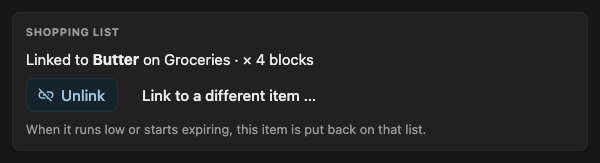
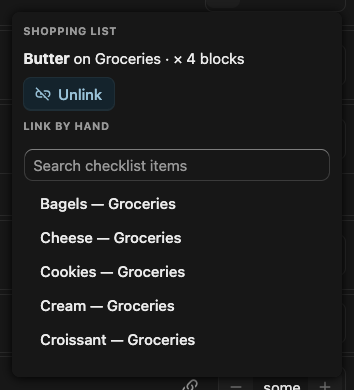
Unlink turns off Add to shopping list when low, so the item is only marked on the inventory. Turn the switch back on to have it linked again when it is next needed.
What the shopping list asks for
Section titled “What the shopping list asks for”- A low count item asks for what it is missing to reach its target.
- A low level item asks for its restock amount.
- An expiring or expired item asks for a full replacement.
- A checked-off or archived item is put back on the list; one in the trash is replaced by a new one on the restock checklist.
- A message tells you whenever your change added, brought back or updated an item on the list.
The message shows after each change that touched the shopping list.
The message shows when the server answers within a few seconds and the inventory is still on screen. Changes made offline and sent later show no message; the shopping list and the daily stock summary still reflect them.
The watch shows no messages about the shopping list.
Changing the amount on the shopping list
Section titled “Changing the amount on the shopping list”Changing stock on the inventory keeps the shopping list’s amount up to date. Changing the amount on the shopping list itself — 12 eggs instead of the 8 stock asks for, because you’re baking — is kept: stock leaves that quantity alone and the item reads set by hand until it is next checked off. Tap the ✕ on the chip to let stock set it again.

No longer needed
Section titled “No longer needed”When stock recovers before anyone shops — someone stepped it back up, or renewed the date — the item on the shopping list is checked off for you and reads No longer needed. An item someone reopened by hand stays on the list until it is checked off.
Buying restocks the inventory
Section titled “Buying restocks the inventory”Checking off a linked item — on the checklist or in Shopping Mode — puts what you bought back into stock:
- The first number in the item’s quantity is what you bought. Left as stock asked, that is exactly what was missing; set by hand, it is what you actually bought. Without a number, everything it restocks goes back to full.
- A level item goes back to Full.
- Items expiring or expired are replaced rather than added to: the new stock takes the old stock’s place.
- Every item it restocks gets a fresh date — today plus how long it keeps, or no date when it has no shelf life.
- An item shared by several inventories fills them in the order they were linked; anything left over goes to the first. One that came up short goes straight back on the list for the rest.
The checked-off item says what it did until it is unchecked:

Raising stock by hand
Section titled “Raising stock by hand”Stepping an item up from empty — or moving a level item up from Out — counts as new stock and renews its date. Stepping up stock that is already there may only be a recount, so the date stays, and the row offers Renew expiry → the renewed date instead. Tap it if you did buy more; any other change to the item, or leaving the page, puts the offer away.
The offer is a chip on the row.
The offer is a chip on the row, and Renew expiry also joins the row’s swipe actions while it is up.
The offer rises from the bottom of the screen while the row is open. Tapping it renews the date and closes the row; the renewal goes out with the row’s change.
Working offline in the app
Section titled “Working offline in the app”In the mobile and desktop app and on the watch, a stock change shows as final the moment you make it — status icon, chips, gauge and counts included — and is sent when there is a connection. If the server turns it down, the inventory reloads with what the server has, and the app says so: Could not save the stock change. The inventory now shows what the server has. The watch shows its usual error for a change it could not save.
Daily stock summary
Section titled “Daily stock summary”Once a day, at the house’s Recurring items reopen time (set in Manage house), Pantry sends one notification per inventory about what newly ran low or out, or started expiring or expired since the last one — for example “Pantry: 1 low, 1 out, 1 expiring”. Opening it shows the inventory’s items that need restocking. Nothing new, no notification.
Everyone who can see the inventory gets it. Turn it off for the whole inventory with Daily stock summary in Inventory settings, or just for yourself with Daily stock summary:
Under Personal settings → Notifications.
Under Settings → Notifications. Tapping the notification opens the inventory with Needs restock picked in the Stock filter.